

 Teams
Teams SharePoint
 Slack
Slack QR Codes
 PDF
PDF Active Directory
 Workday
 ADP
ADP Canva
CanvaAutomation | HR | Internal Communication
The comms guide to open enrollment email automation

Everything about open enrollment comms can be sent by hand, and most teams do! You block a morning, load the send, pull the list, check it against who’s already enrolled, send it… and then do that again five days later, and again, and again.
That work is the work most worth handing off. Workshop’s Internal Communications Trends Report found that 68% of communicators want AI to automate repetitive tasks, and that the top obstacle communicators name is not having enough time or resources — open enrollment is the clearest case of both.
This is a guide to open enrollment email automation — how to build the whole sequence once so it runs whether you’re at your desk or not, and so next year is a duplicate-and-update-the-dates job instead of a blank page. We’ll walk through what you’re building, the exact sequence with triggers and delays, the branches that make it feel personal, and the AI prompts that get you a first draft in minutes.
New to the strategy behind all this? Start with our open enrollment communication best practices! Ready to get started? You can grab all twelve sends in our open enrollment email templates post and automate them below!
What automated open enrollment communications actually are
Sending by hand means every email is a separate task: build it, pull the list, suppress the people who already enrolled, send, repeat. Automated open enrollment communications collapse that into one build that runs on a schedule.
In Workshop, the tool for this is a Journey — a sequence with a trigger, a set of steps, delays between them, and branches that let the path change based on what people actually do. Three parts to set up: pick a trigger, add your steps and sends, turn it on. Then it runs on its own!
For open enrollment, the shape is:
- Trigger: Scheduled campaign start — [date, 3 weeks before enrollment opens]
- Audience: Enrollment-eligible employees, synced from your HRIS
That HRIS sync is the quiet hero of the whole thing. When your audience pulls from the source of truth, someone who becomes eligible mid-campaign gets picked up automatically, and someone who leaves drops out — no manual list surgery.
The open enrollment automation sequence, step by step
Here’s the full Journey. The templates referenced are the twelve in our email templates post and the Open Enrollment Kit!
1. Save the date (Template 1) → wait 14 days
2. What’s changing (Template 2) Dynamic content: swap the plan-change block by region. → wait 7 days
3. Enrollment is live (Template 4) — branch by segment:
| Segment | Gets |
| First-time enrollees | Template 5 |
| Rollover-eligible, no change | Template 6 |
| Deskless / frontline | Template 7 (+ SMS) |
| Everyone else | Template 4 |
→ wait 3 days
4. Branch — did they open Step 3?
- No → send the unopener nudge (Template 9), with a different send time
- Yes → skip
→ wait until midpoint date
5. Midpoint reminder (Template 8) — suppress anyone marked enrolled → wait until T-48 hours
6. 48-hour last chance (Template 10) — suppress anyone marked enrolled → wait until final day, 8:00 AM local
7. Final day (Template 11) — suppress anyone marked enrolled → wait until close +2 days
8. Post-close confirmation (Template 12) — audience: enrolled employees only
A parallel one-step Journey handles managers: trigger on the same campaign date, audience = people managers, send the manager enablement email (Template 3) eight days before enrollment opens.
The build, step by step
1. Pick your trigger. For open enrollment, a scheduled campaign start is the right one — you know the date. (Journeys can also trigger on an HRIS event like a new hire or a benefit eligibility date, which is what you’d use for the separate new-hire enrollment flow that runs all year.)
2. Set your audience from HRIS instead of a spreadsheet. When the audience syncs from your HRIS, someone who becomes eligible mid-campaign gets picked up automatically, and someone who leaves drops out.
3. Add your sends and delays. Load Templates 1, 2, 4, 8, 10, 11, and 12 as the spine. Set the delays in days for the early sends and to specific dates for the deadline-driven ones. You want “8:00 AM on the final day,” not “wait 13 days,” so the sequence stays correct when the enrollment window shifts.
4. Add the segment branches at Step 3. First-time enrollees, rollover-eligible, and deskless each get their variant. Everyone else gets Template 4.
5. Add the unopener branch. Three days after the day-one send, split on open behavior. Non-openers get Template 9 at a different time of day. This is your second chance for the people your first subject line missed — and it costs you nothing to run.
6. Add suppression to every reminder. Steps 5, 6, and 7 should exclude anyone who has completed enrollment. If your enrollment platform can write completion status back to your employee data, this is automatic. If it can’t, plan to upload a completion list every other day during the window.
7. Use dynamic content instead of building more emails. One email whose “what’s changing” block swaps by region beats four near-identical emails you have to keep in sync.
8. Turn it on and watch the first 48 hours. Opens, clicks, and completions report in real time. Check that the day-one send landed for every segment before you stop paying attention — then let it run. (Here’s more on the analytics worth watching.)
The whole build takes about 45 minutes. Next year, you duplicate the Journey, rename it, update the dates, and you’re mostly done.
Six more open enrollment automations worth building
Once the main sequence exists, these are the small ones with outsized payoff:
- New-hire benefits enrollment — Triggered on the HRIS hire date, new hires get their own 30-day enrollment window all year long. Build it once and it covers every hire from now on.
- Qualifying life event follow-up — Triggered when your HRIS records a status change (marriage, birth, address change).
- Benefit eligibility date — For organizations with a waiting period, trigger on the eligibility date itself rather than the hire date.
- FSA use-it-or-lose-it reminder — Two sends, one in early November and one in mid-December, to FSA participants with a remaining balance.
- Dependent verification chase — For anyone who enrolled a dependent but hasn’t submitted documentation. A three-step nudge with suppression on submission.
- The August re-promotion — A recurring annual Journey that surfaces your planning checklist and last year’s results to your own team six weeks before kickoff. Automating your own prep is allowed!
Want more of these with example builds? Our automated employee email use cases has patterns for onboarding, ERG welcomes, and beyond.
Let AI write the first draft
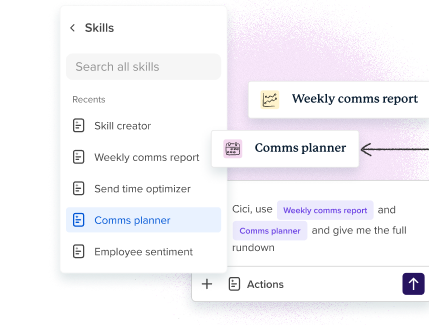
Automation handles the sending. AI handles the drafting — the part that eats your morning. Cici is Workshop’s AI assistant for internal comms, built on the research and best practices of thousands of communicators. Here are a few prompts from our prompt library to steal (swap in your details):
Draft the full sequence:
Draft a five-email open enrollment sequence for [company], a [industry] company with [number] employees. Enrollment runs [open date] to [close date] and it’s [active/passive]. The three biggest changes this year are [change 1], [change 2], [change 3]. Emails should be scannable, warm, and no longer than 250 words each. Every email needs one clear CTA to the enrollment portal.
Make the deskless version:
Rewrite this for frontline employees who will read it on a phone between shifts. Maximum 80 words, one action, one link. Then write a 160-character SMS version of the same message: [paste email]
Fix the urgency:
This last-chance email reads as panicked. Rewrite it so the urgency is real and factual — the deadline and the consequence — without the all-caps and the sirens: [paste]
Build the FAQ:
Based on this open enrollment announcement, write the 10 questions employees are most likely to ask, and draft a two-sentence answer for each. Flag any question where the answer depends on plan specifics I need to confirm with Benefits: [paste]
Save the prompts that get you something good. A prompt library that reflects your actual company, plan names, and voice gets better every year — and it’s the fastest on-ramp for whoever runs open enrollment when you’re on PTO.
Frequently asked questions
How do you automate open enrollment reminders? Build one sequence with a scheduled trigger, then let it run. In Workshop, that means a Journey: pick a trigger (your campaign start date), add your sends with delays between them, add a branch that sends a different email to anyone who didn’t open the launch, and suppress anyone who has completed enrollment from every reminder. Sync the audience from your HRIS so mid-campaign eligibility changes are handled for you.
How long does it take to build? About 45 minutes for the main sequence. And next year it’s a duplicate-and-update-the-dates job, because the build already exists.
Do automated open enrollment communications feel impersonal? They feel more personal when done well, because automation is what makes segmentation and suppression practical. Dynamic content swaps a block by region or plan type, segment branches send first-time enrollees a different email than veterans, and suppression means nobody gets a “you haven’t enrolled” nudge after they’ve already enrolled.
What if my enrollment platform doesn’t sync completion data back? Plan to upload a completion list every other day during the window, and point your suppression at that list. It’s a little manual, but it still beats rebuilding each send by hand — and the rest of the sequence runs on its own.
Build it once, reuse it forever
The promise of open enrollment email automation is simple: the work you do this year is the work you don’t do next year. Map the sequence, build the Journey, turn it on — then duplicate it every October.
To put it together: start with the 6-week communication plan checklist to get your dependencies in order, use the 12 email templates for your copy, and grab the full Open Enrollment Kit for the automation build, prompt library, and send calendar in one download!